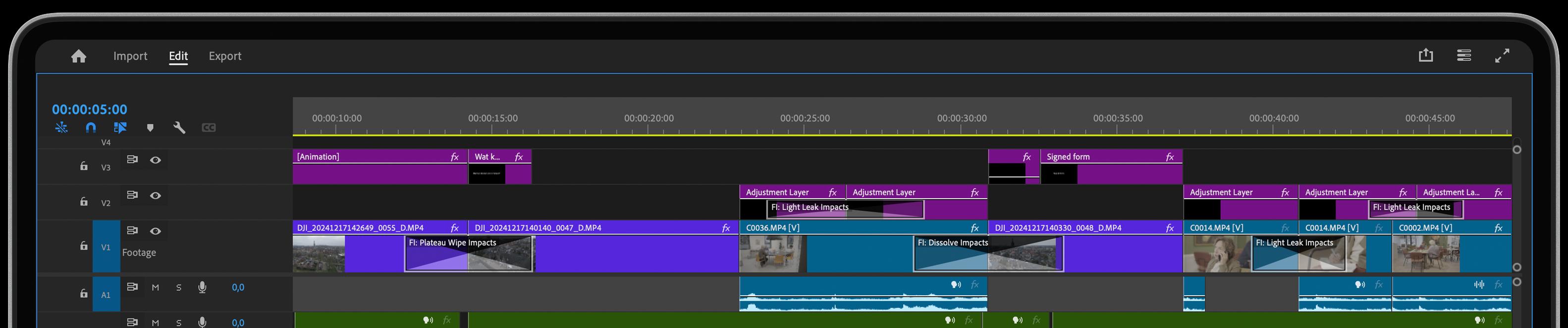
Graphic Animations in Premiere
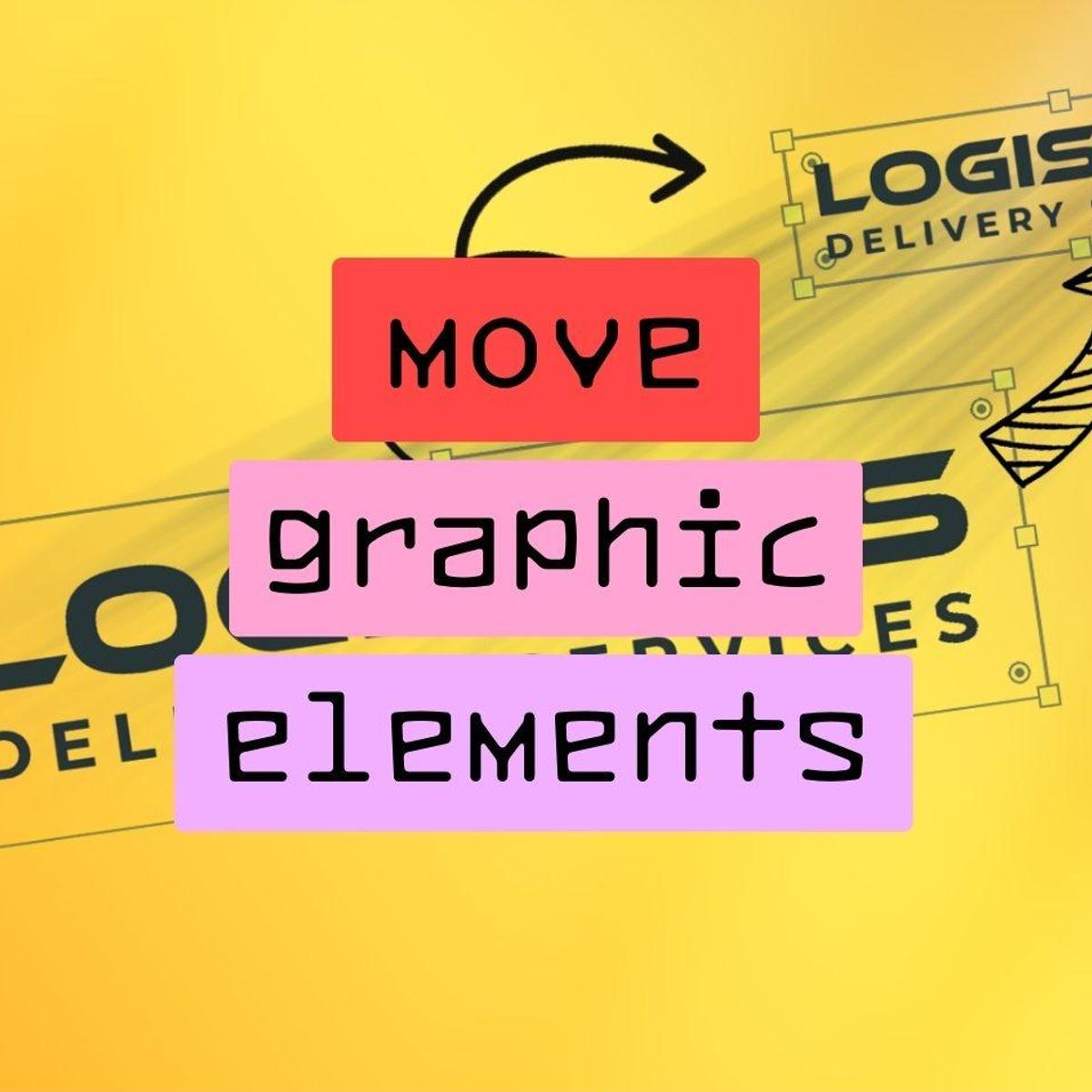
Tired of repositioning elements in Premiere using keyframes? Simply speed up your workflow. It's a Drag & Drop solution that will save you a round trip to Adobe After Effects. No complicated scripting. We've done the heavy lifting for you. Dazzling 3D-Motion-Blur-Engine to emphasize each movement.
Working with Graphics in Premiere
In this tutorial, we explore Motion Tween from Film Impact Premium Tools, a time-saving tool designed for working with graphics in Adobe Premiere. Motion Tween simplifies moving and animating graphic elements, eliminating the need for manual keyframing.
What Does Motion Tween Do?
Motion Tween automates the process of animating movements. Instead of manually adjusting keyframes to move a logo or graphic, Motion Tween handles this for you. For example, if a logo needs to move slightly or become a watermark in the corner of the video, it can be done easily without keyframes.
To demonstrate, a logo can be duplicated using Alt+Drag. Once the logo is centered, it can be repositioned for display throughout the video, such as becoming a watermark. Instead of keyframing the movement, Motion Tween will handle this task smoothly.
Motion Tween Magic
Once the logo is placed, Motion Tween simplifies the animation process. Start by creating a cut in the timeline where the logo will move. Then, reposition the logo by adjusting the scale and position, such as moving it to a corner of the screen. After the repositioning, apply the Motion Tween effect by dragging and dropping it onto the logo element.
Motion Tween will automatically handle the movement between the two positions. Adjustments like reducing the resolution to half-rez can enable real-time playback to preview the effect. The transition will appear smooth, and the animation will be handled dynamically.
More Magic with Motion Tween
Motion Tween offers additional flexibility with parameter controls. Inside these controls, adjustments can be made to the Bezier curve for effects like overshoot, adding a dynamic bounce to the movement. Further refinements can be made, such as adding y-axis rotation or giving the graphic a swirl effect during the transition.
These dynamic movements create a polished look with minimal effort. The animation duration can also be extended if more time is needed for the transitions. Motion Tween easily adapts to such changes, ensuring smooth results.
Repositioning Graphic Elements
Motion Tween is particularly useful when changes are needed later in the process. For instance, if a client requests that the logo be moved to a different corner of the screen, Motion Tween will handle this without the need for redoing keyframes. By simply repositioning the element, Motion Tween will adjust the movement and transition automatically, saving significant time.
The tool also integrates 3D motion blur, which emphasizes movement during animations. Setting the playback to full resolution with high quality allows for a smooth preview of how the motion blur enhances the overall animation, especially when adding rotations along the Z-axis.
Save a Round-Trip to Adobe After Effects
Using Motion Tween eliminates the need for a round trip to After Effects or dealing with complex keyframing and scripting. All adjustments are made visually within Premiere, allowing for a more intuitive and time-efficient workflow.
By using Motion Tween, you can streamline the process of working with graphics in Premiere, saving time and effort while producing high-quality animations. This tool is ideal for anyone looking to reduce reliance on keyframes and external software like After Effects.